



If the people who view your report belong to a different Microsoft tenant than the one that hosts it, they need to be set up as guests before they can comment in view mode. This article walks through the steps an administrator needs to take.
In the steps below, Tenant A is the tenant that hosts the report, and Tenant B is the tenant the commenting user belongs to.
Before you begin
- You need administrator access in Tenant A: Microsoft Entra, the Power BI / Fabric workspace, and the SharePoint site.
- You need the email addresses of the Tenant B users
Step 1: Invite the Tenant B user into Tenant A
You are working in Tenant A.
- Go to the Microsoft Entra admin center and sign in to Tenant A.
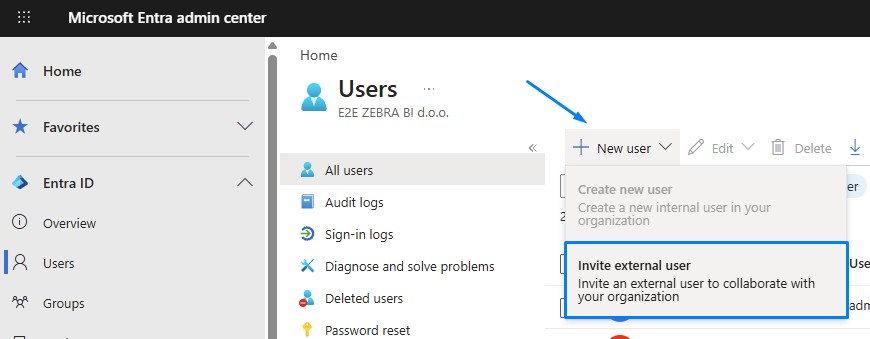
- Go to Entra ID > Users > New user > Invite external user.
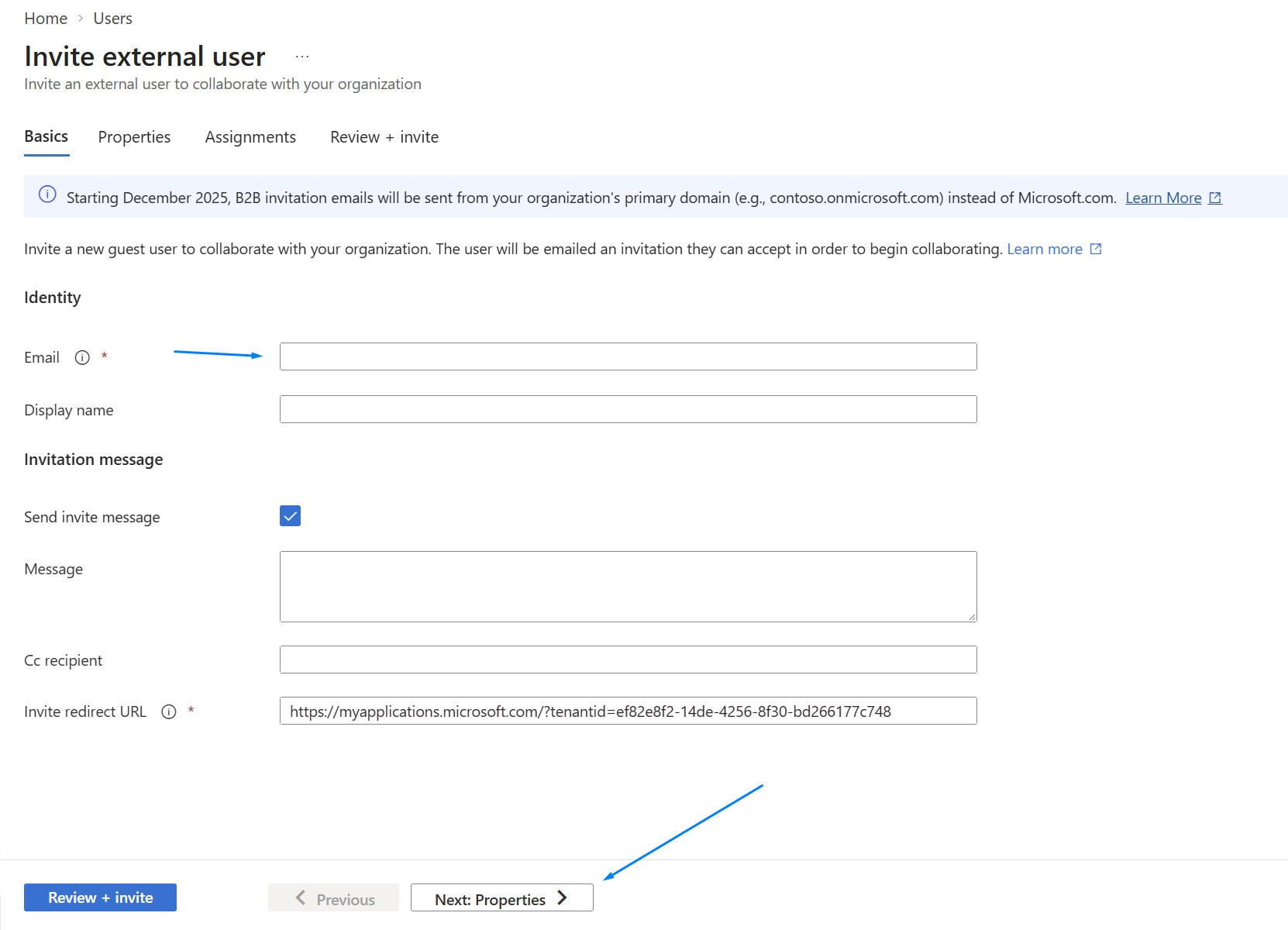
- Enter the Tenant B user’s email address.
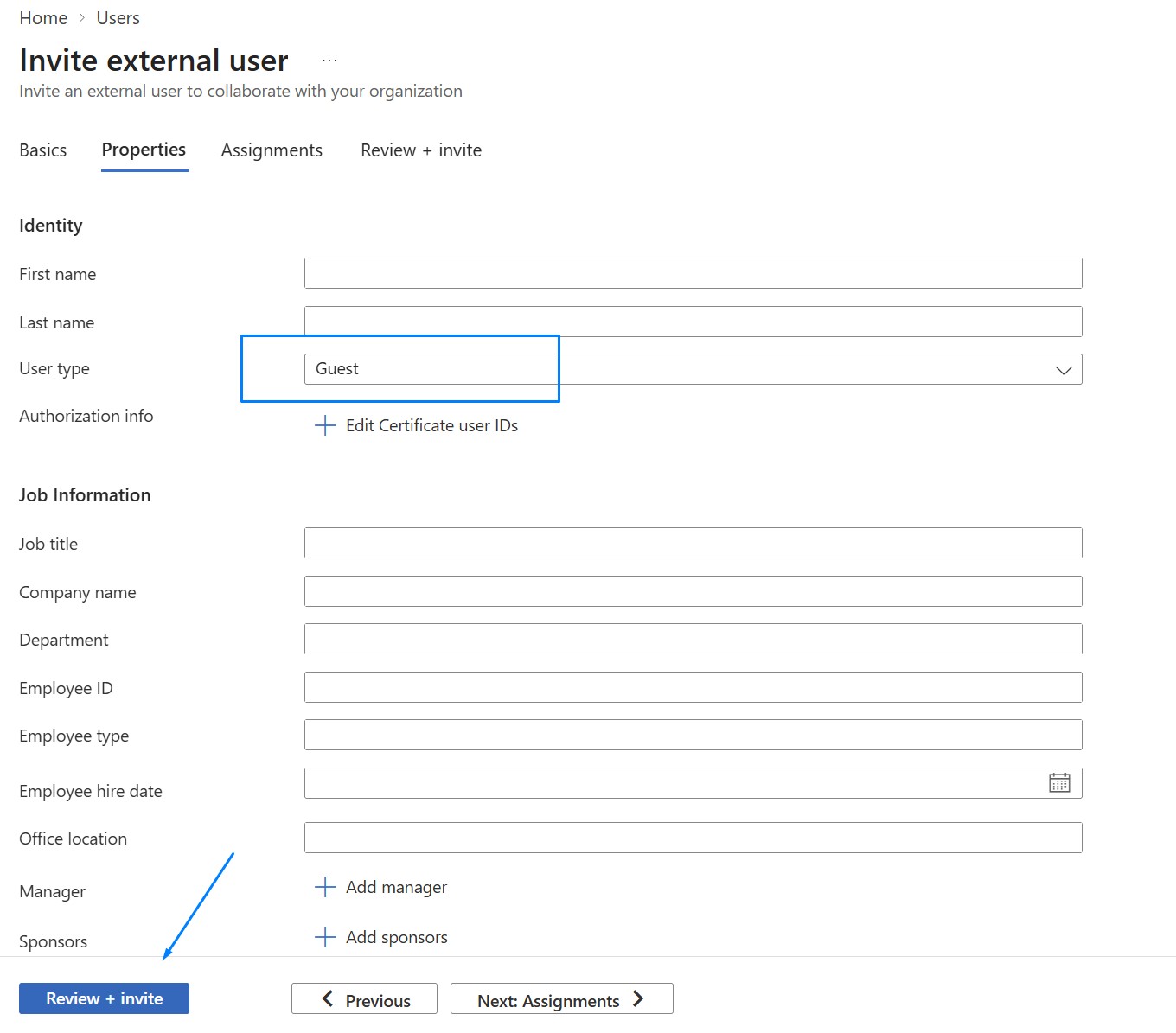
- In Properties, set User type to Guest.
- Click Review + invite.
The Tenant B user receives an invitation email.
Result: the Tenant B user now exists as a guest in Tenant A.
Step 2: Give access to the Power BI workspace
You are still working in Tenant A.
- Go to Power BI / Fabric in Tenant A and open the workspace that contains the report.
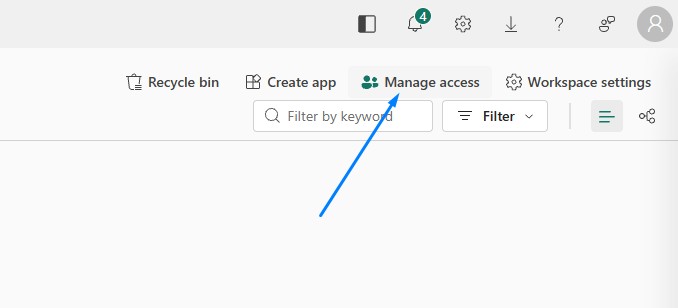
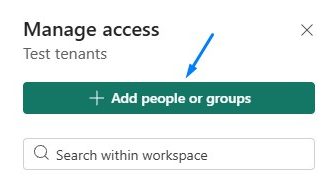
- Select Manage access.
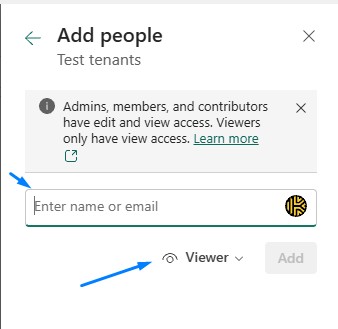
- Click Add people or groups and enter the Tenant B guest’s name or email address.
- Select a role, for example Viewer.
- Click Add.
Result: the Tenant B user now has permission to access the Tenant A workspace.
Step 3: Give access to SharePoint
You are still working in Tenant A.
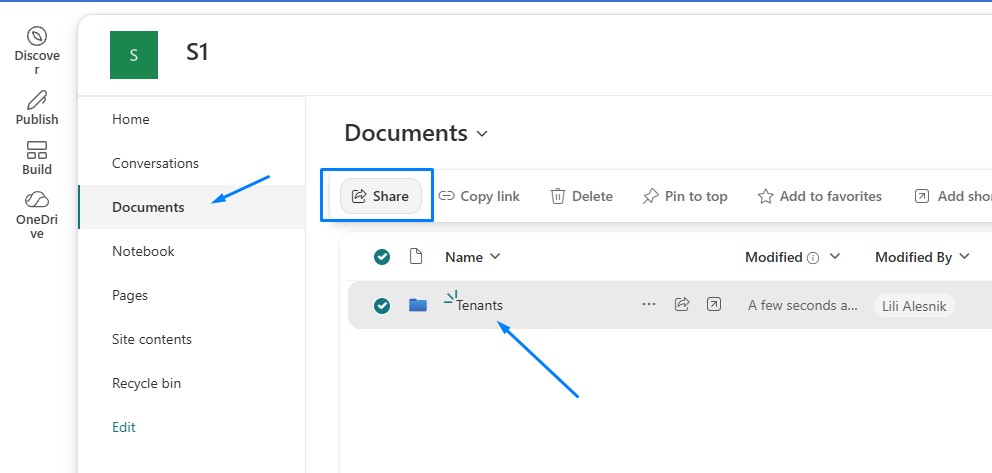
- Go to SharePoint in Tenant A and open the relevant site or library.
- Open Documents and click on the folder where you store Excel files for comments.
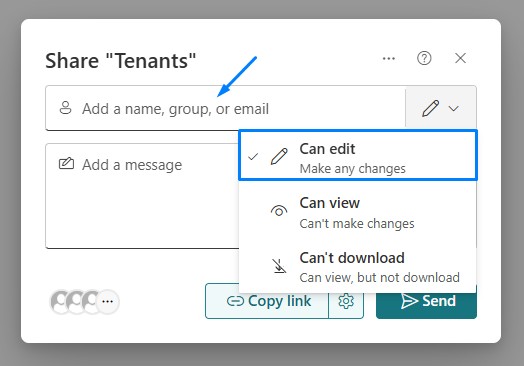
- Enter the Tenant B user’s email address.
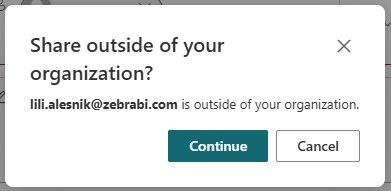
- Choose the appropriate permission: Can edit. When you get a pop-up to share outside your organization, click Continue.
- Send the invitation.
The Tenant B user receives the invitation by email.
Result: the Tenant B user can access the Tenant A SharePoint content using their Tenant B account.