



Zebra BI is presenting new visual variants Zebra BI Tables+ and Charts+(coming soon), that enable Power BI report viewers to add data-point-level comments directly on visuals, without requiring edit permissions.
This solution enables users to collaborate directly within Power BI reports while keeping all data secure and within your Microsoft 365 environment.
Prerequisites
Add Visuals to Organizational Store
Open Power BI and sign in with an admin account – https://app.powerbi.com/
If your organization has enabled the “Add and use certified visuals only (block uncertified)” policy in Power BI Service, you won’t be able to access the visual from the Appsource store. If your organization allows all AppSource visuals, skip this step.
Settings → Admin Portal → Tenant settings
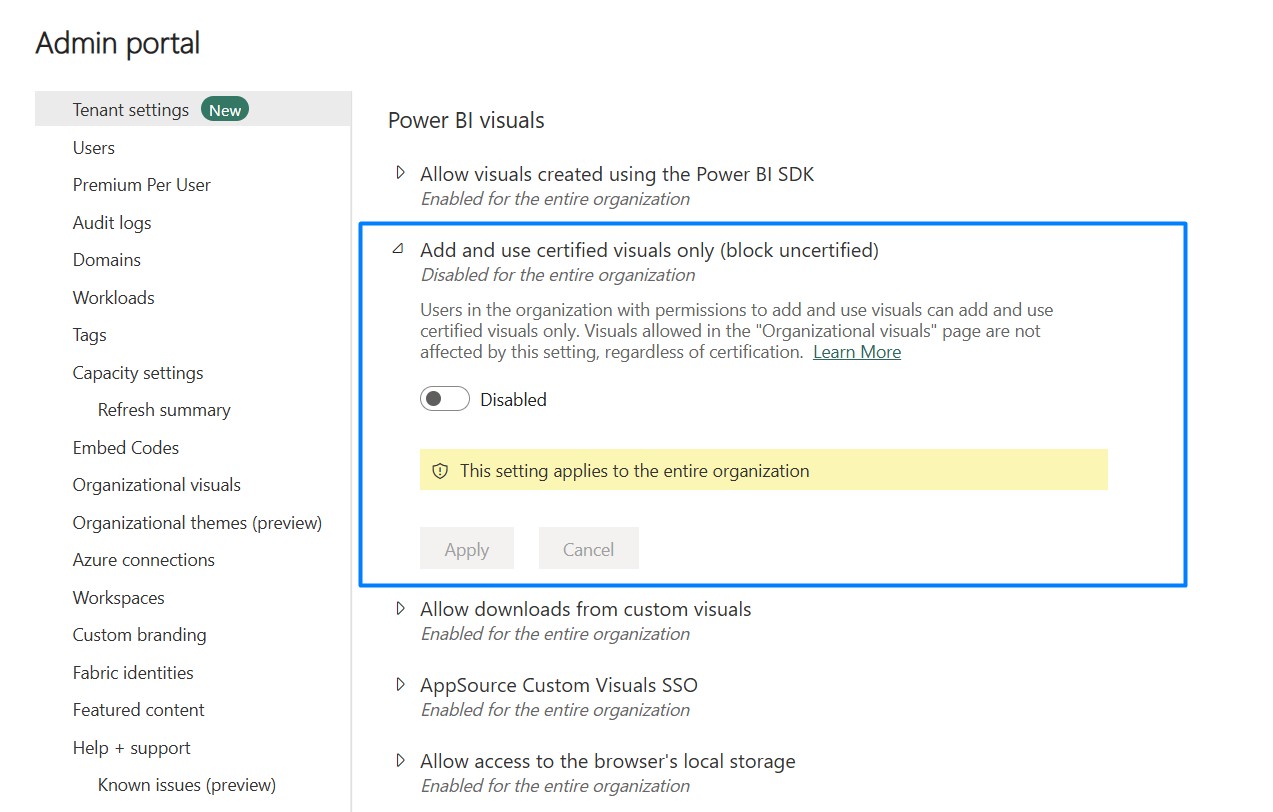
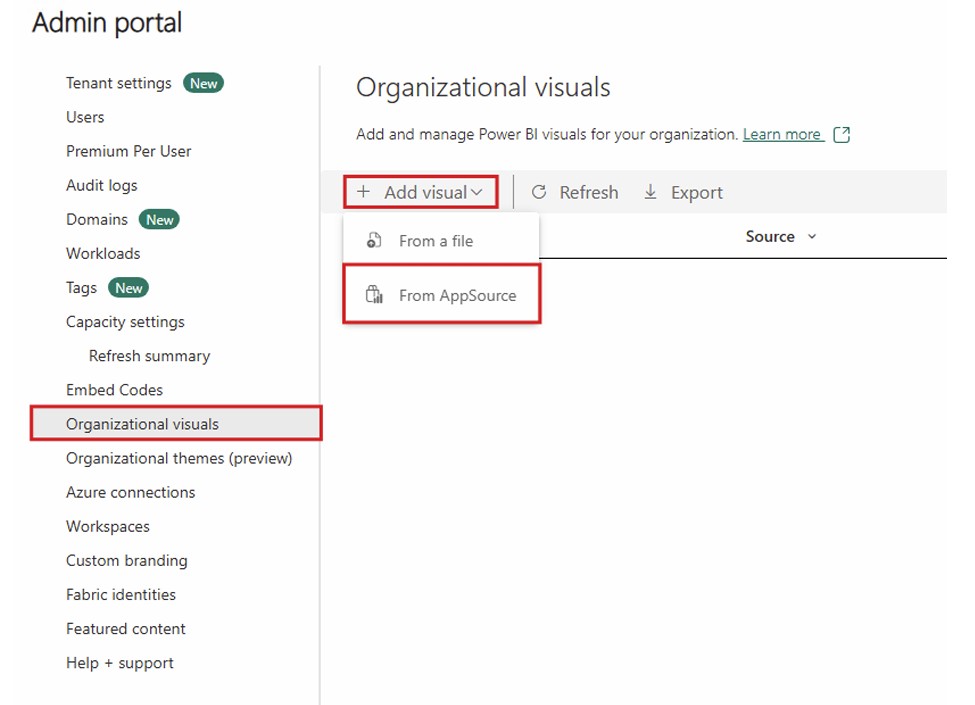
- Navigate to the Power BI Admin Portal → Organizational visuals → Add visual → From AppSource. Search for and add both “Zebra BI Tables+” and “Zebra BI Charts+”
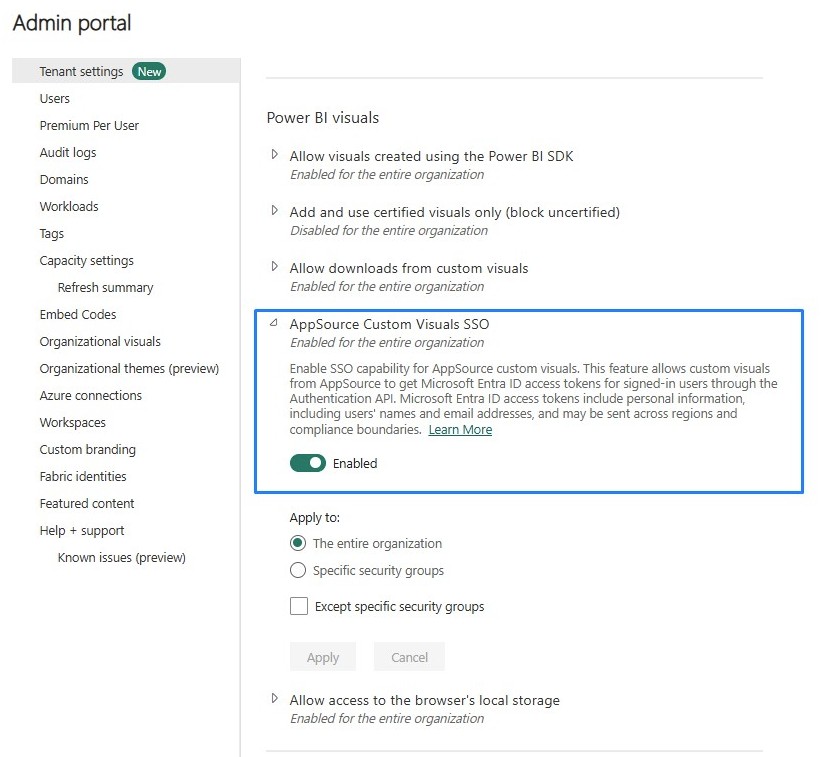
Enable SSO for Custom Visuals (Required)
⚠️Without SSO enabled, the visual cannot identify who is leaving comments. The commenting feature will not function until this setting is active.
- Navigate to Settings → Admin Portal → Tenant Settings → Power BI visuals → “AppSource Custom Visuals SSO” and enable the toggle.
This setting can be scoped to specific security groups rather than the entire organization, if your IT policy requires it. You can also exclude specific groups. For detailed Microsoft documentation, see:
AppSource Custom Visuals SSO
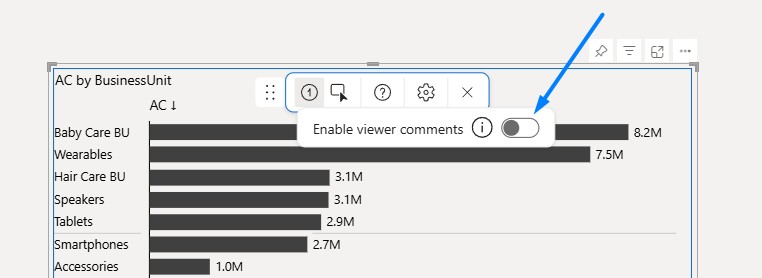
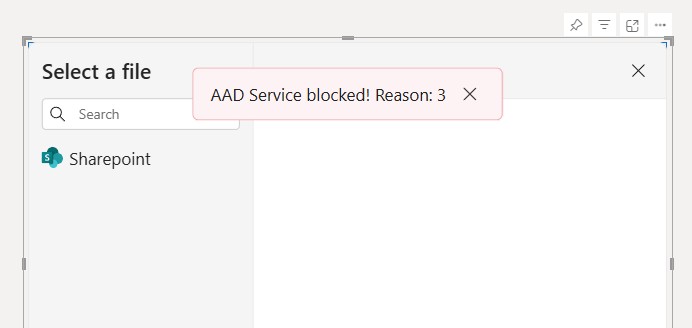
How do users experience the disabled “AppSource Custom Visuals SSO“
When a report editor will try to “Enable viewer comments” option, he will receive the following error:
Pre-Authorize the Zebra BI Application
One-time organizational consent that permits the Zebra BI visual to read and write comments to SharePoint on behalf of users. This removes the need for each individual user to request access.
An IT admin follows the link below:
https://api.zebrabi.com/pbi/graph-files/public/consent/admin
Initial page when the link is opened
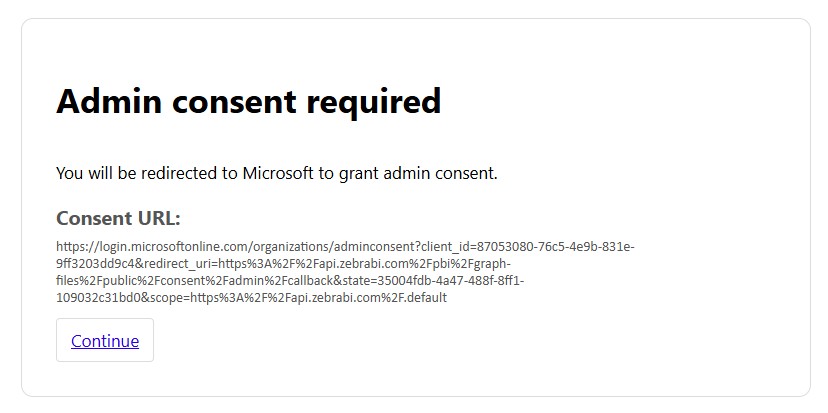
After you click “Continue“
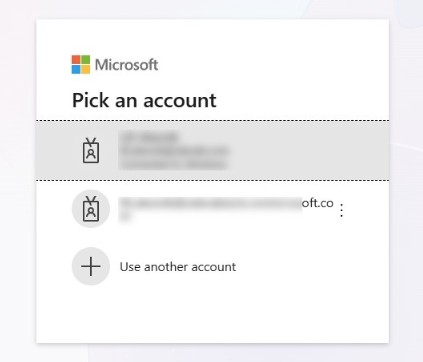
When an account is selected:
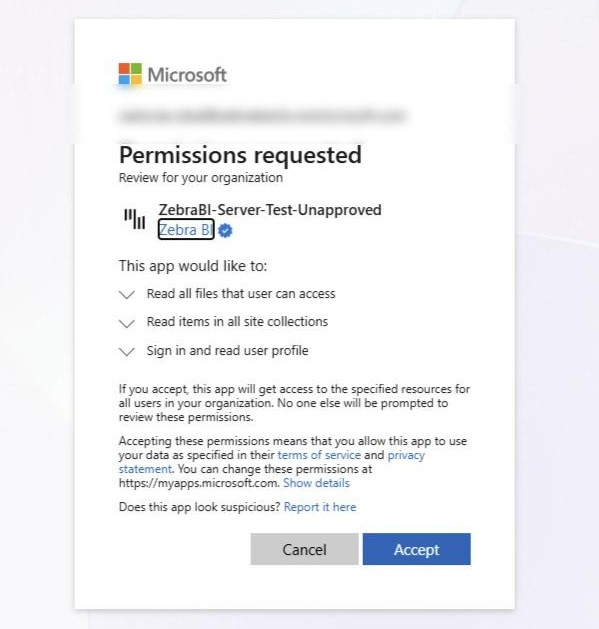
Once accepted, all users in your organization will be able to add comments.
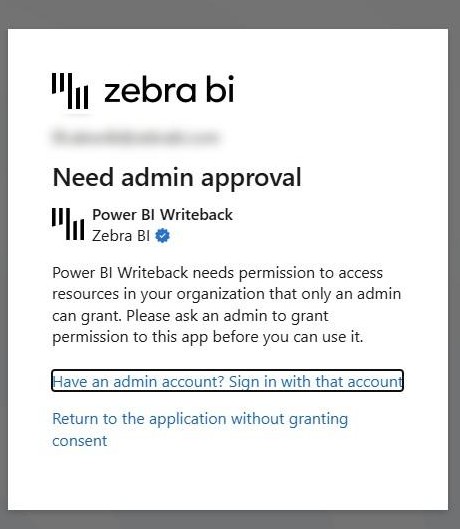
What happens without pre-authorization:
Each user will be prompted to request access the first time they try to comment. An IT administrator must then review and approve each request individually, which introduces friction and increases support workload.
ℹ️For detailed information on our legal and security practices, please refer to the following assessment:
Legal documentation – Zebra BI
Data Governance and Security
Data storage
- All comment data is stored in Excel files within your SharePoint environment. Your data stays inside your Microsoft 365 tenant at all times.
- You manage data retention, backups, and auditing through your existing SharePoint governance settings.
- The Excel file is in a standard, easy-to-read format, so you can open it at any time to review all comment data
- No comment data is stored on Zebra BI servers.
- All data communication happens through standard Microsoft Graph API endpoints within your tenant.
Audit trail
Every comment action is recorded in the SharePoint Excel file with full attribution:
- Comment creation: timestamp, user identity (name and email), comment text, and the data context (filter selections)
- Comment deletion: comments are soft-deleted (marked with a deleted flag) and remain in the file for audit purposes
- The Excel file serves as both the storage mechanism and a complete audit log
